Mungo
Finding the right words that are already written
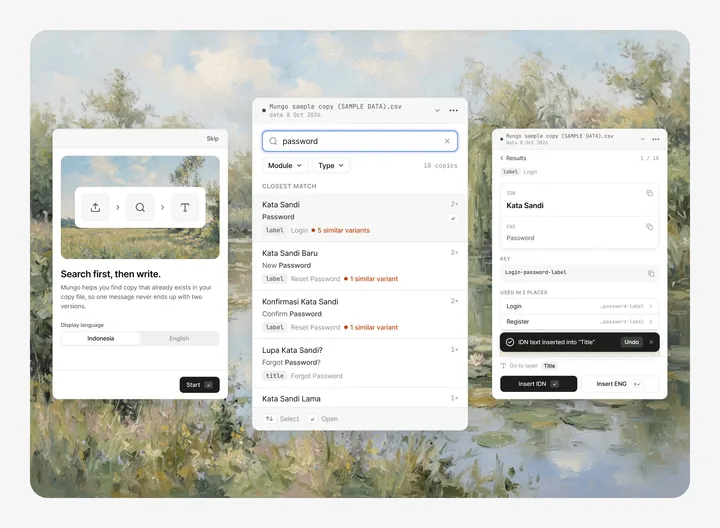
Mungo: Copy Finder Cover
The Background
Mungo is a Figma plugin I designed and built for the UX writing team of TOUCHBIZ, SMBC Indonesia’s banking app for business customers. Every piece of text in the app, from button labels to error messages, is written by four UX writers in Indonesian and English and logged in a master Excel file. The web app alone has more than 5,500 entries.
Before writing anything new, writers search that file for copy that already exists. Mungo lets them find it, see where it is used, and place it into the design without leaving Figma.
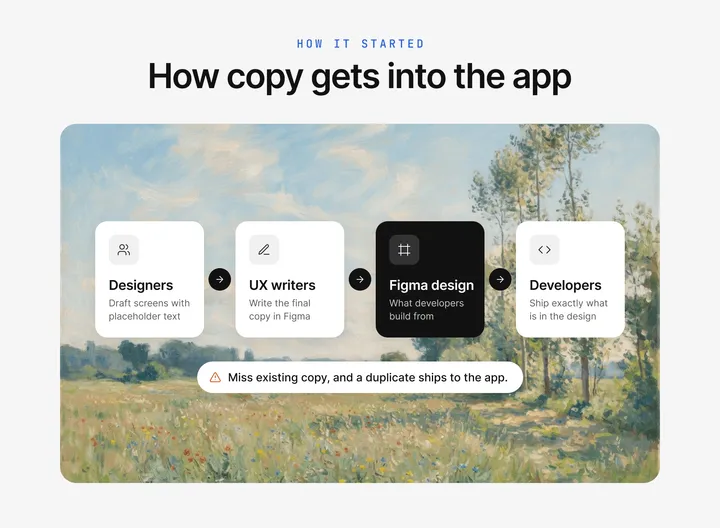
How copy is written today
How It Started
The idea started from a simple observation: writers sometimes wrote new copy for a case that already had copy with the same meaning. Over time, the app ended up with several versions of the same message.
This matters more than it looks. Developers take the final copy straight from the Figma design, so whatever writers place there is exactly what users see. If a writer misses existing copy, the duplicate goes straight into the app.
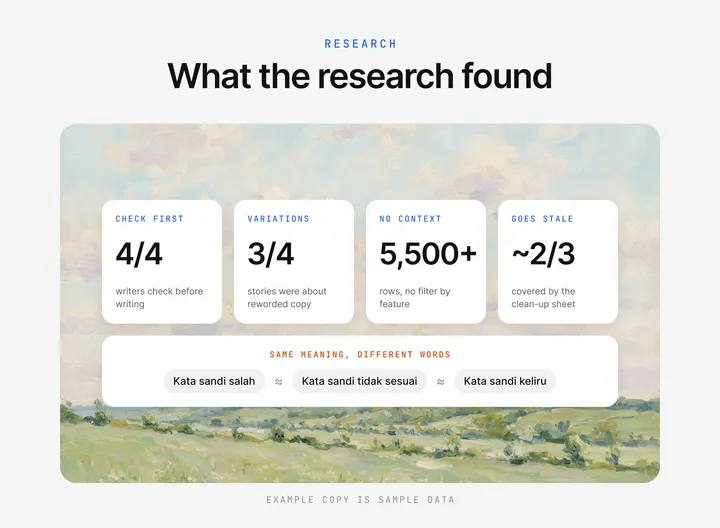
Key findings from the survey and the master file
Research
I wanted to check the observation before designing for it. I ran an async survey with all 4 UX writers, reviewed the team’s UX Writing Guideline, and analysed the master Excel file directly. Here is what I found:
- Checking first is already a habit: every writer checks existing copy before writing. Finding the right one is the hard part.
- Variations, not exact duplicates: 3 of 4 stories from writers were about the same meaning written in different words.
- No context to search by: thousands of rows, with no way to filter by app feature.
- The clean-up list goes stale: the manually de-duplicated sheet covered only about two thirds of the file.
- Writers want to stay in control: one writer worried that a tool that suggests too aggressively would make the team over-rely on it.
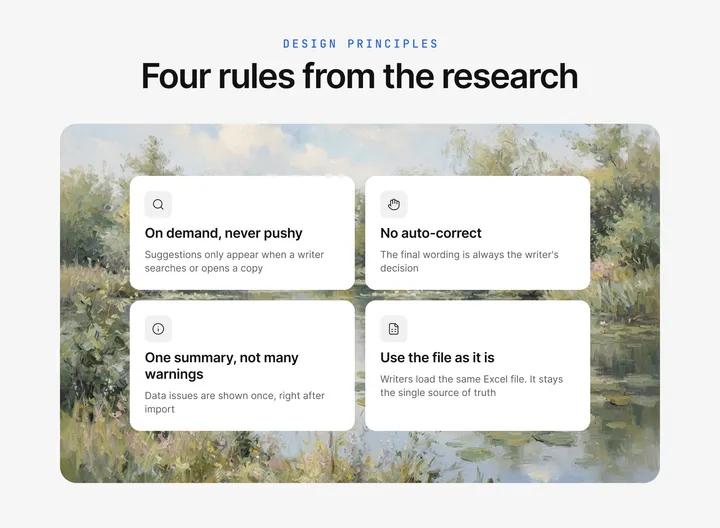
Four rules that came straight from the research
Problem Statement
How might we help UX writers find copy with the same meaning, together with where it is used, right inside Figma, without a manual list that goes stale, and without taking language decisions away from them?
Design Principles
The last insight became a rule for the whole design:
- On demand, never pushy: suggestions appear only when a writer searches or opens a copy.
- No auto-correct: the final wording is always the writer’s decision.
- One summary, not many warnings: data issues are shown once, in a short summary.
- Use the file as it is: writers load the same master Excel they already use, with no reformatting. The Excel stays the single source of truth.
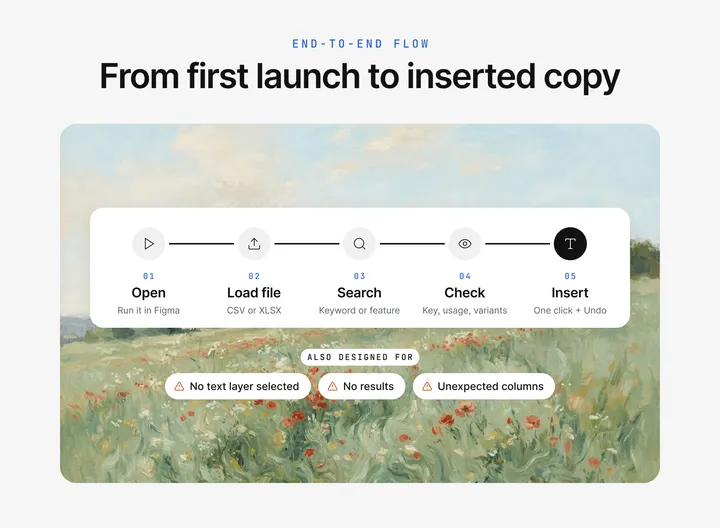
The end-to-end flow, from first launch to inserted copy
Designing the Flow
I mapped the full journey before drawing any screen, including what happens when things go wrong: the wrong layer selected, an empty search, or a file with unexpected columns. The flow comes down to four steps:
- Load the files: Mungo detects the Key, Indonesian and English columns automatically and shows one validation summary. More than one file can be loaded at once.
- Search or browse: writers type a keyword or browse by app feature. Search tolerates spacing, capitalisation and small spelling differences.
- Check the details: each copy shows its Indonesian and English text, its key, every place it is used, and similar variants at the bottom.
- Insert: one click places the Indonesian or English copy into the selected text layer, with an Undo in the toast.
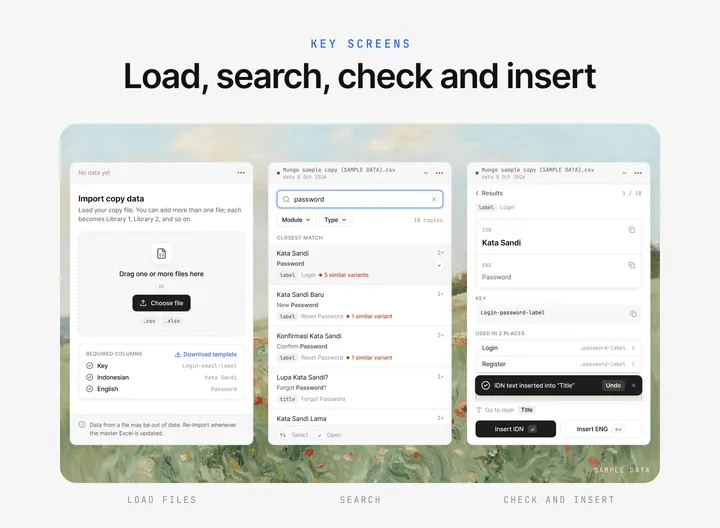
Key screens: load files, search, check and insert
Key Screens
Each screen does one job. The toolbar always shows which files are loaded and the date of the data, so writers know how fresh it is. Results show Indonesian and English together, with the number of places each copy is used and a flag when similar variants exist.
The detail page puts the key and every place the copy is used first, because that is what writers check before reusing it. Insert IDN and Insert ENG are separate buttons, and the toast offers an Undo right away.
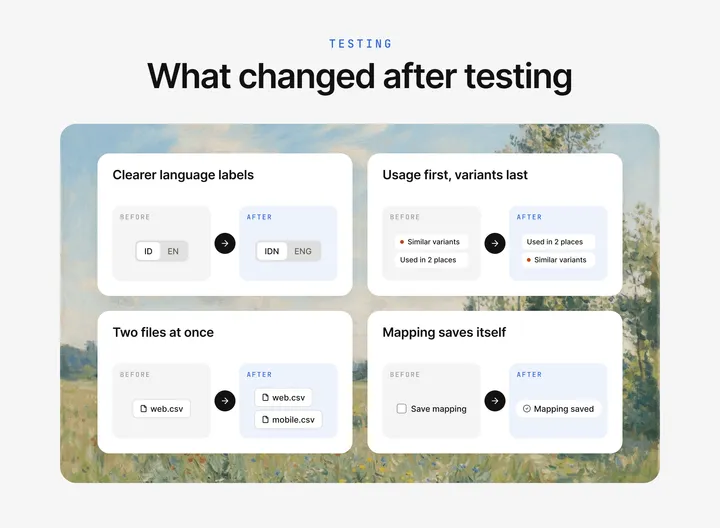
Changes made after testing with writers
Testing with Writers
Two writers tested the clickable prototype with real tasks, and the other two helped refine the copy inside the plugin itself. Their feedback changed the design in concrete ways:
- “ID” was read as an identity number, so language labels became IDN and ENG.
- Where a copy is used mattered more than similar variants, so variants moved to the bottom of the detail page.
- Writers check two products back and forth, so loading several files became part of the first version.
- The “save mapping” checkbox confused people, so column mapping is now saved automatically.
- The onboarding did not feel like onboarding, so it became a short intro followed by three steps.
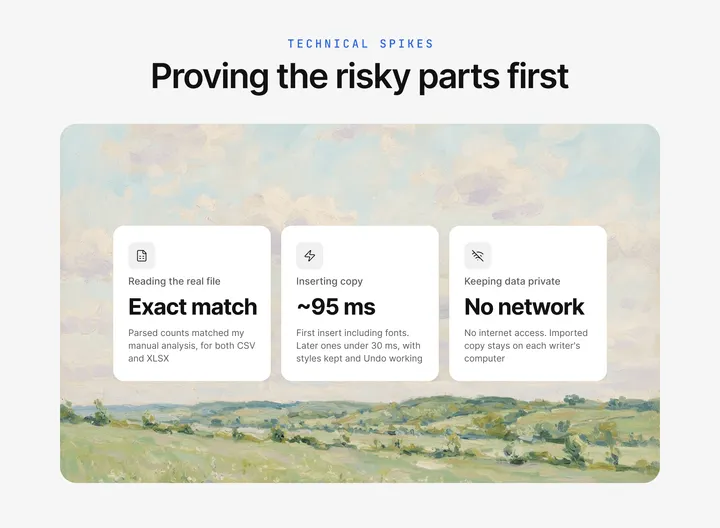
Results from the technical spikes
Proving the Risky Parts
Before building the full plugin, I tested the riskiest parts with small throwaway prototypes:
- Reading the real file: the parser produced exactly the same counts as my manual analysis, for both CSV and XLSX.
- Inserting copy: inserted text kept the layer’s text style, worked inside components, and could be undone. The first insert took about 95 ms, later ones under 30 ms.
- Keeping data private: the plugin has no network access. Imported copy is stored only on each writer’s computer, so no company data leaves it or ships with the plugin.
What changes for writers
Outcome
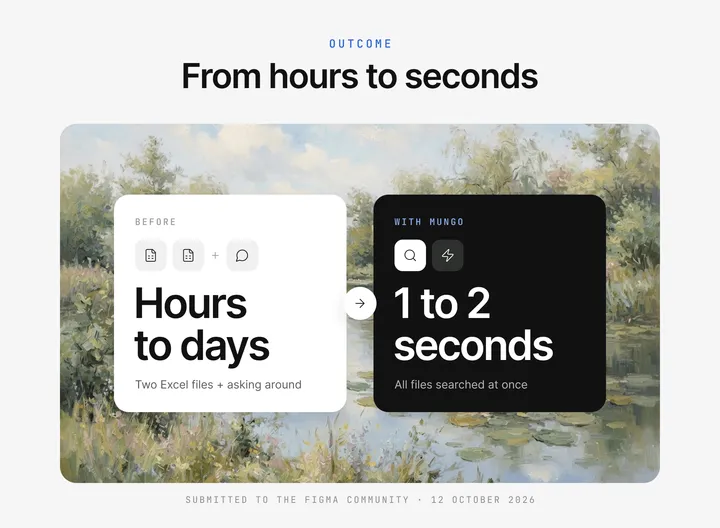
Finding copy used to mean opening two Excel files, checking matches one by one, and asking writers, designers or developers, which could take hours or days. With Mungo, search results come back in 1 to 2 seconds, across all files at once.
Mungo was submitted to the Figma Community on 12 October 2026 and is currently in review.
Try the Prototype
Click through the happy flow yourself: a short intro, loading a sample copy file, searching for “password”, checking the details, and inserting the copy into a text layer.
All copy in the prototype is sample data.
Mungo: Copy Finder prototype in Figma (sample data)
This project started as a small question about duplicate copy and turned into my first Figma plugin. The most valuable part was not the code, but working close to the writers: their habits shaped the principles, and their feedback shaped almost every screen.
Team
Muchtarruddin (Rudi) · Design Engineer
Larissa Serafina · UX Writer
Nabilla B Immamah · UX Writer
Aini Q · UX Writer
Raisa · UX Writer